
有時候資料量太大,想要讓使用者體驗更好,使用搜尋控制器 (Search Controller)是個好方法!

此時是displayTableView
先在IB上拉好界面,包含Table View、Search Bar and Search Display Controller,並設定delegate、data source。
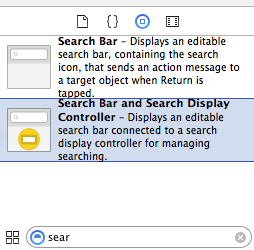

接著將變數與界面做連結~

程式碼相當簡單⋯⋯
在.h中寫下:
#import <UIKit/UIKit.h>
/**
 Theme: Search Controller
 IDE: Xcode 6
 Language: Objective C
 Date: 103/11/05
 Author: HappyMan
 Blog: https://cg2010studio.wordpress.com/
 */
@interface HTMainViewController : UIViewController <UITableViewDelegate, UITableViewDataSource>
{
    // UI
    IBOutlet UITableView *displayTableView;
    IBOutlet UISearchBar *searchBar;
    IBOutlet UISearchDisplayController *searchBarController;

    // Control

    // Data
    NSMutableArray *contentList;
    NSMutableArray *filteredContentList;
}

@end
我們建立原始資料陣列和過濾資料陣列,以table view做判斷顯示資料。
在.m中寫下:
/**
 Theme: Search Controller
 IDE: Xcode 6
 Language: Objective C
 Date: 103/11/05
 Author: HappyMan
 Blog: https://cg2010studio.wordpress.com/
 */
#import "HTMainViewController.h"

@interface HTMainViewController ()

@end

@implementation HTMainViewController

- (void)viewDidLoad {
    [super viewDidLoad];
    contentList = [[NSMutableArray alloc] initWithObjects:@"Happy Man", @"happyman", @"Happy Woman", @"Water Man", @"man", @"woman",@"human", @"happy", @"happyyy", nil];
    filteredContentList = [[NSMutableArray alloc] init];
}

#pragma mark - UITableViewDataSource

-(NSInteger)numberOfSectionsInTableView:(UITableView *)tableView {
    return 1;
}

- (NSInteger)tableView:(UITableView *)tableView numberOfRowsInSection:(NSInteger)section {
    // Return the number of rows in the section.
    if (tableView == searchBarController.searchResultsTableView) {
        return [filteredContentList count];
    }
    else {
        return [contentList count];
    }
}

- (UITableViewCell *)tableView:(UITableView *)tableView cellForRowAtIndexPath:(NSIndexPath *)indexPath {
    static NSString *CellIdentifier = @"Cell";

    UITableViewCell *cell = [tableView dequeueReusableCellWithIdentifier:CellIdentifier];
    if (cell == nil) {
        cell = [[UITableViewCell alloc] initWithStyle:UITableViewCellStyleDefault reuseIdentifier:CellIdentifier];
    }

    // Configure the cell...
    if (tableView == searchBarController.searchResultsTableView) {
        cell.textLabel.text = [filteredContentList objectAtIndex:indexPath.row];
    }
    else {
        cell.textLabel.text = [contentList objectAtIndex:indexPath.row];
    }
    return cell;

}

#pragma mark - Search Function Responsible For Searching

- (void)searchTableList {
    NSString *searchString = searchBar.text;

    for (NSString *tempStr in contentList) {
        NSComparisonResult result = [tempStr compare:searchString options:(NSCaseInsensitiveSearch|NSDiacriticInsensitiveSearch) range:NSMakeRange(0, [searchString length])];
        if (result == NSOrderedSame) {
            [filteredContentList addObject:tempStr];
        }
    }
}

#pragma mark - Search Bar Implementation

- (void)searchBar:(UISearchBar *)searchBar textDidChange:(NSString *)searchText {
    //Remove all objects first.
    [filteredContentList removeAllObjects];

    if([searchText length] != 0) {
        [self searchTableList];
    }
    else {
    }
}

- (void)searchBarCancelButtonClicked:(UISearchBar *)searchBar {
    NSLog(@"Cancel clicked");
}

- (void)searchBarSearchButtonClicked:(UISearchBar *)searchBar {
    NSLog(@"Search Clicked");
    [self searchTableList];
}
@end
編譯執行後,點擊Search Bar便能開始搜尋,而且是每打一個字就立刻搜尋且顯示結果呢!

此時是searchBarController
GitHub原始碼下載:SearchControllerTest。
參考:


 逍遙文工作室
Comments on: "[iOS] 搜尋控制器 (Search Controller)" (1)
Version 7.3.1 xcode 編譯。看不到search bar . 可能是layout飄掉
讚讚