Just My Life & My Work

Posts tagged ‘project’

[iOS] 可可豆莢多目標 (Cocoapods with Multiple Targets)

隨著時間發展,iOS App已經變得更加複雜且龐大,使用使用 CocoaPods 管理第三方套件已成為必要之事,然而這樣還是不夠,因為我們一個專案 (Project)中不再只是一個目標 (Target),這些目標都需要同一個函式庫 (Library),但是可可豆莢 (Cocoapods)預設只為最初的那個目標,我們該怎麼下指令才能讓所有目標都能引用同一函式庫呢?

cocoapods13

原來只要多加link_with關鍵字,後頭接上目標的名稱即可!

/**
 Theme: Podfile with Multiple Targets
 IDE: Xcode 6
 Language: Objective C
 Date: 104/04/01
 Author: HappyMan
 Blog: https://cg2010studio.wordpress.com/
 */
source 'https://github.com/CocoaPods/Specs.git'
platform :ios, '6.0'

link_with 'HappyCan', 'HappyCan Today', 'HappyCan WatchKit Extension'

pod 'AFNetworking'
pod 'ZBarSDK'
pod 'Toast', '~> 2.4'
pod 'LineKit', '~> 1.4.1'
pod 'MBProgressHUD'
pod 'OpenSSL-Universal', '1.0.1.k’

以上範例表示我專案中有三個目標(HappyCan、HappyCan Today、HappyCan WatchKit Extension),都需要引用相同的函式庫。
參考:What is a Podfile?

[Xamarin][iOS] 多螢幕:電話字 (Sample Project: Phoneword)

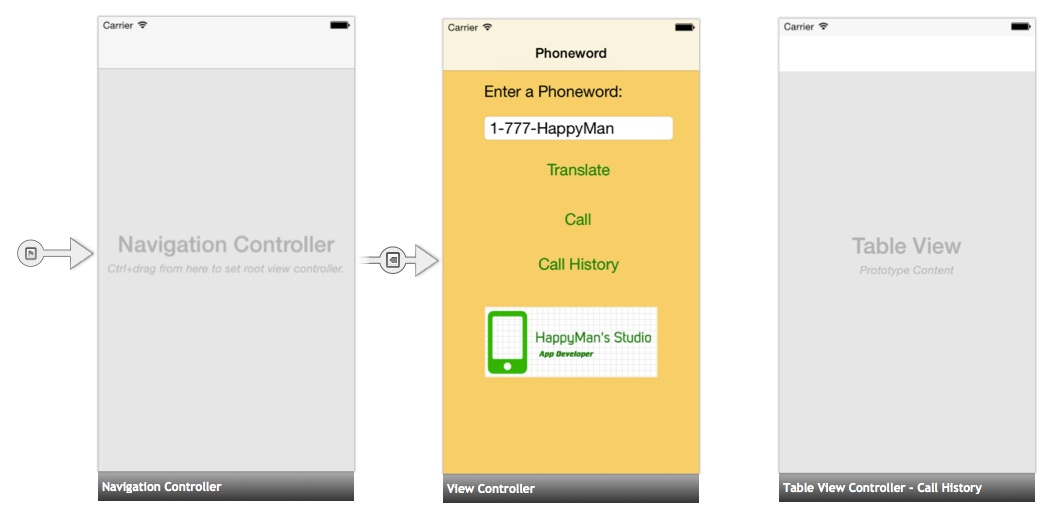
承接深度了解專案:電話字 (Sample Project: Phoneword),再來學習多螢幕架構,同樣也是跟Xcode非常相似的做法,看到介面很快就能上手!

Xamarin phoneword00010

簡直就一模一樣嘛⋯⋯view controller的連結也是透過拉藍色線

過去我鮮少使用Storyboard,多使用Xib,不過因Apple一直在推廣Storyboard(範例程式都以它為主),我們豈能守舊而唯Xib獨尊?想想過去技術高手只想用code,來處理App所有層面的事情,現在看起來是多麽不切實際呢!之所以會發明新的工具,就是想增進開發效率,所以讓我們來擁抱改變吧!

(繼續閱讀…)

[Xamarin][iOS] 深度了解專案:電話字 (Sample Project: Phoneword)

承接範例專案:電話字 (Sample Project: Phoneword),再來就是解釋它怎麼運作,包含Xamarin介面C#程式碼,還有很重要的是Xamarin.iOS Application的剖析。

Xamarin iOS Application03

  • References – Contains the assemblies required to build and run the application. If we expand the directory, we’ll see references to .NET assemblies such as System , System.Core, and System.Xml , as well as a reference to Xamarin’s Xamarin.iOS assembly.
  • Components – The Components directory houses ready-made features from the Xamarin Components store , a public marketplace for Xamarin code. This is similar to the NuGet Gallery for those familiar with Visual Studio. For more information on Xamarin Components, refer to the Xamarin Components walkthrough .
  • Resources – The Resources folder stores icons, launch images, and other media. Xamarin has a separate guide for Working with Resources that explores the role of this directory further.
  • Main.cs – This contains the main entry point of the application. To start the application, we pass in the name of the main application class, the AppDelegate .
  • AppDelegate.cs – This file contains the main application class and is responsible for creating the Window, building the user interface, and listening to events from the operating system.
  • MainStoryboard.storyboard – The Storyboard contains the visual design of the application’s user interface. Storyboard files open in a graphical editor called the iOS Designer.
  • Phoneword_iOSViewController.cs – The View Controller powers the screen (View) that a user sees and touches. The View Controller is responsible for handling interactions between the user and the View.
  • Phoneword_iOSViewController.designer.cs – The designer.cs is an auto-generated file that serves as the glue between controls in the View and their code representations in the View Controller. Because this is an internal plumbing file, the IDE will overwrite any manual changes and most of the time we can ignore this file. For more information on the relationship between the visual Designer and the backing code, refer to the Introduction to the iOS Designer guide.
  • Info.plist – Info.plist is where we set application properties such as the application name, icons, launch images, and more. This is a powerful file and a thorough introduction to it is available in theWorking with Property Lists guide.
  • Entitlements.plist – The entitlements property list lets us specify application capabilities (also called App Store Technologies) such as iCloud, PassKit, and more. More information on theEntitlements.plist can be found in the Working with Property Lists guide. For a general introduction to entitlements, refer to the Device Provisioning guide.

看起來和Xcode裡的檔案架構很類似呢!學習來格外輕鬆~

(繼續閱讀…)

[Xamarin][iOS] 範例專案:工作清單 (Sample Project: Tasky)

在瞭解Xamarin介紹與研究後,接著就去下載並且安裝Xamarin Studio,再來當然就是要來跑「飯粒」專案囉~如此可快速上手Xamarin!

官方提供的範例專案:工作清單 (Sample Project: Tasky),下載後開啟專案,即可直接編譯執行,除了在模擬器 (Simulator)上跑,也能在實機 (Device)上跑呢!而模擬器居然是開啟Xcode附帶的iOS模擬器,所以感覺相當親切:)~

Xamarin before

(繼續閱讀…)

[Xamarin][iOS] 範例專案:電話字 (Sample Project: Phoneword)

有目標的學習是最快學會一套工具的最好方式!於是乎,Xamarin官方的快速開始教學範例專案:電話字 (Sample Project: Phoneword),引領我熟悉這有著神秘面紗的IDE (整合開發環境)

Xamarin Phoneword

這畫面看起來是不是很像Xcode的樣子呀?!

(繼續閱讀…)

圖片

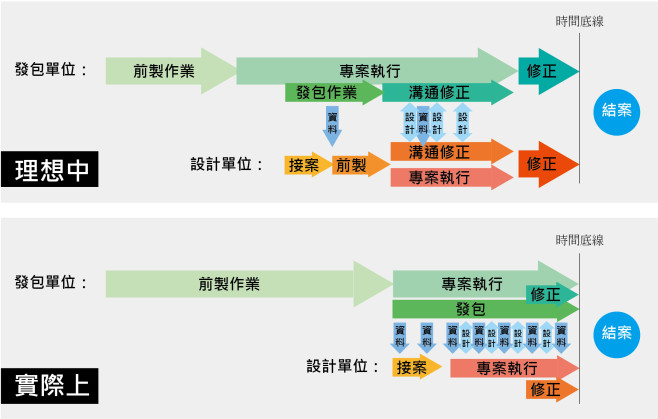
從接案到結案

看到一張跟我工作流程有非常大關係的繪圖,雖然它主要想表達美術設計師的狀況,但其實身為程式設計師的我也心有戚戚焉!

好在公司所接的案子是從比較有經驗的公司發包而來,那麼從接案到結案真的就像理想中那張圖,資料第一次幾乎給滿,剩下的就是溝通、討論、修正。

接案結案過程


雖然我才剛出來工作,卻已經接觸到各式各樣有大有小的案子,如果想要工作得刺激點,那麼就選擇實際上那張圖所描繪的情境吧!那樣可以開發自己的潛能,年輕的我多會選擇需求規格不明的案子來做⋯⋯(誤)

說真的,有壓力進步就會快!

參考:【LIVES OUT OF LIFE】無中生有的設計咒語:「沒關係你先設計,資料我再補」設計師最討厭聽到的話還有這句:沒關係你先設計啊,資料我再補你啦

[iOS] ARM架構與i設備的關係

一些專案設定要慢慢開始瞭解,特別是Build Settings有許多細節,跟APP運行的環境相關。

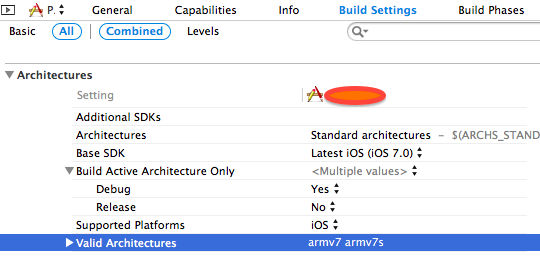
iOS ARM架構與i設備的關係

此截圖為某HappyLife專案Build Settings中Architectures的部分,開發界面是Xcode 5 beta。

(繼續閱讀…)

[iOS] 簽署資源問題 (Signed Resource Problem)

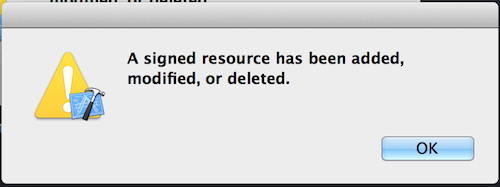
簽署資源已經被添加,修改,或刪除」這是google的翻譯,其實要看原文才知道這是什麼問題:

A signed resource has been added, modified, or deleted.

這是在編Xcode上編譯時,會出現的問題,當然我根本不知道為何會出現這個問題,還好解決的方法只是重開Xcode,但若在某些情況無法這麼做的話,該怎麼辦呢?

A signed resource has been added, modified, or deleted.
(繼續閱讀…)

[iOS] UIImageView和UIButton的setImage

還在搞記憶體的問題,這個問題可是所有工程師的夢魘啊~程式之所以會crash,一大原因就是出於記憶體相關問題,而我最近面對的是記憶體無法釋放~

iOS UIImageView和UIButton的setImage

(繼續閱讀…)

專案需求圖解 (Illustrations Project Demand)

大三(2009年)修軟體工程課時,小鄭教授提到一幅十格漫畫圖,頓時覺得學軟體工程非常有趣!畢竟還沒有專案實做經驗來學理論,大部分的內容有聽沒有懂呢!剛找到原圖出處,來自Project Cartoon2006年發表version 1,現在出現version 2,已經有些專案經驗的我,試著解釋它所描繪的意境。

(繼續閱讀…)

標籤雲